HOW TO EDIT YOUR CANVA TEMPLATE
STEP-BY-STEP GUIDE FOR BEGINNERS
QUICK START: MOST CUSTOMERS ONLY NEED THESE 4 STEPS
Use this section when you need the fastest path from template link to finished file.
- Open the Canva template link included with your purchase.
- Click Use template, Use this template, or the closest similar Canva button.
- Replace sample text with your own names, dates, obituary, and service details.
- Drag your family photos directly over the existing photo frames.
- Download as PDF Print for printing, PNG/JPG for digital sharing, or MP4 Video for videos.
Log into a free Canva account before editing. Canva will save your work automatically while you make changes.
1. BEFORE YOU START EDITING
Before you begin, download all the files included with your purchase and open the PDF containing your Canva template link.
We strongly recommend signing in to a free Canva account before editing. Canva automatically saves your work while you edit, so you can return later if you receive a better photo, notice a spelling mistake, need to update information or print additional copies.
You can edit without an account, but Canva may not save your work if you close your browser before downloading.
Take a moment to gather your photos and information before you begin. A few minutes of preparation will make editing much easier.
You do not need Canva Pro for the template itself. A free Canva account is recommended so your edits save automatically.
You may edit and download during one browser session without logging in. If you close the browser, your changes may not be saved.
Avoid Canva elements marked with a crown unless you are happy to pay Canva for them. Uploading family photos or free elements keeps your download simple and avoids accidental premium charges.
If Canva offers a free trial or asks for payment because of a premium element, manage that directly with Canva. The template itself was designed to be editable without Canva Pro.
2. HOW TO OPEN YOUR TEMPLATE
Open the PDF included with your purchase and click the Canva template link. Your web browser will open Canva automatically.
If Canva asks you to sign in, simply log in or create a free account.
Click Use Template (or a similar button). Canva will create your own editable copy, ready for you to personalise. Your original template always remains unchanged.
- Open the PDF or access file that contains your Canva template link.
- Click the Canva template link.
- When Canva opens, click Use template, Use this template, Customize template, or the closest similar button.
- Canva will create your own editable copy of the design.
- Start editing text and replacing sample photos.
3. EDITING TEXT
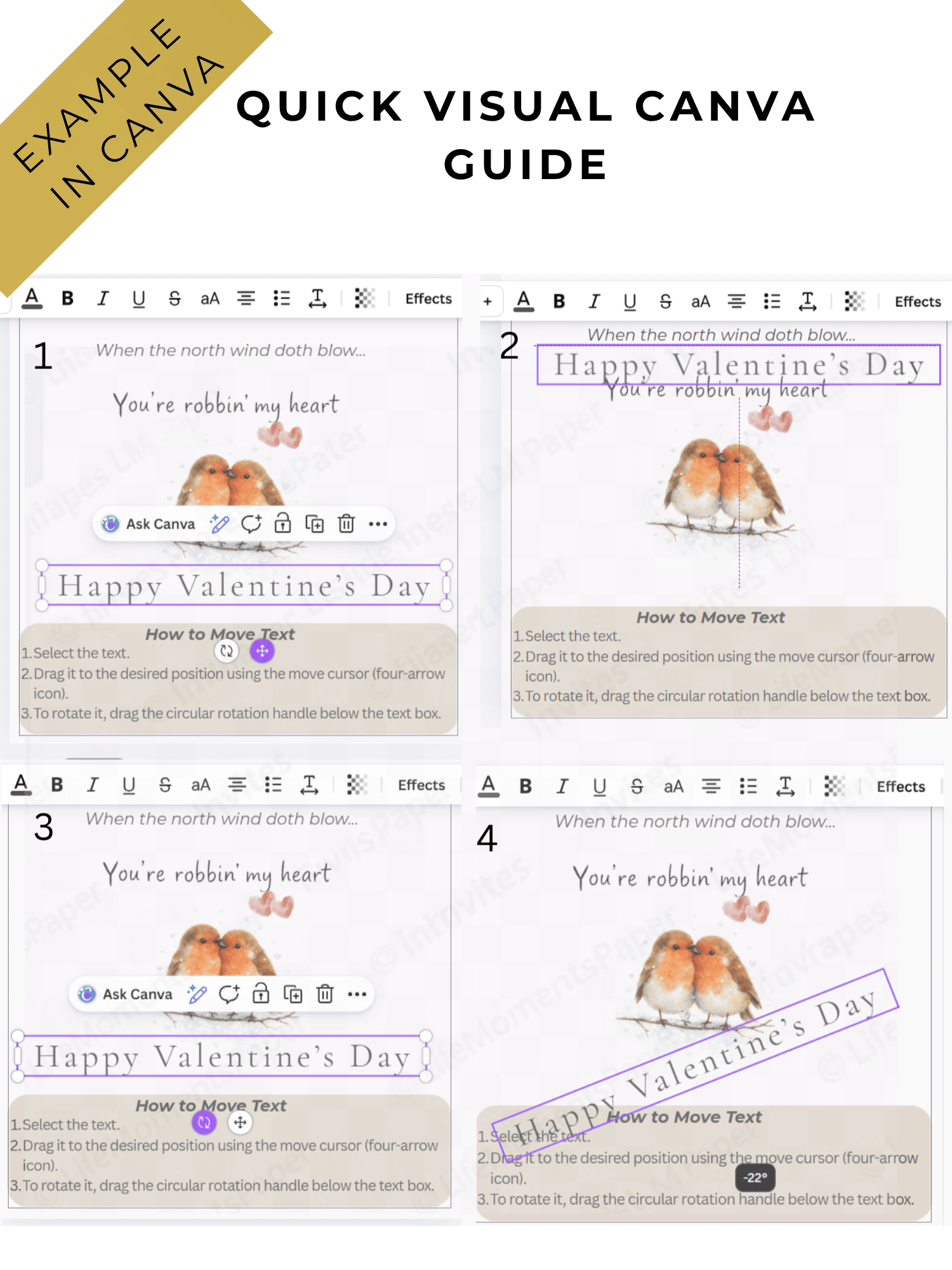
Click inside the text you would like to change and replace the sample text with your own information.
Once the text box is selected, a toolbar appears across the top of the editor where you can adjust the font size, spacing or alignment if needed.
If your text is longer than the sample, reduce the font size slightly until everything fits comfortably.
Use this section for names, dates, obituary text, service order, poems, and venue details.
- Click directly on the text box you want to edit.
- Highlight the sample text.
- Type your own text.
- Use Canva’s top toolbar to adjust font size, spacing, alignment, or color if needed.
- If the text is too long, reduce the font size slightly, adjust line spacing, or shorten the text.
Review all full names, dates, military ranks, service times, cemetery names, church names, addresses, and officiant details.
4. REPLACING PHOTOS CORRECTLY
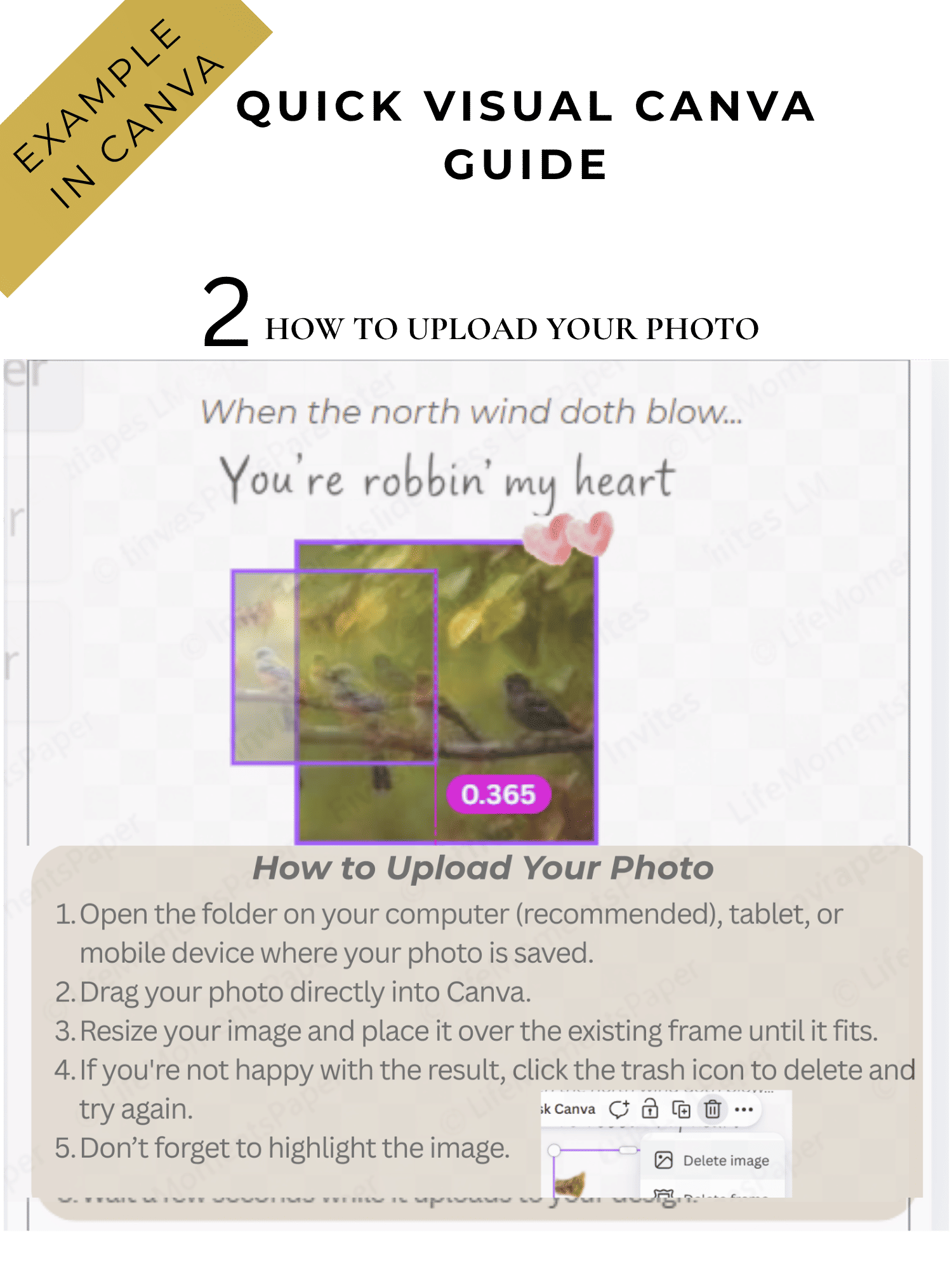
On the left side of the Canva editor you'll find the Uploads panel. Click Upload Files and choose the photos you would like to use from your computer or phone.
After a few seconds your photos will appear inside Canva. Click and hold the photo you want to use, then drag it over the sample photo already in your template.
When the frame highlights, release the mouse and Canva will replace the photo automatically.
If you would like to adjust the position, double-click the photo, move it until you're happy with the result, then click outside the frame.
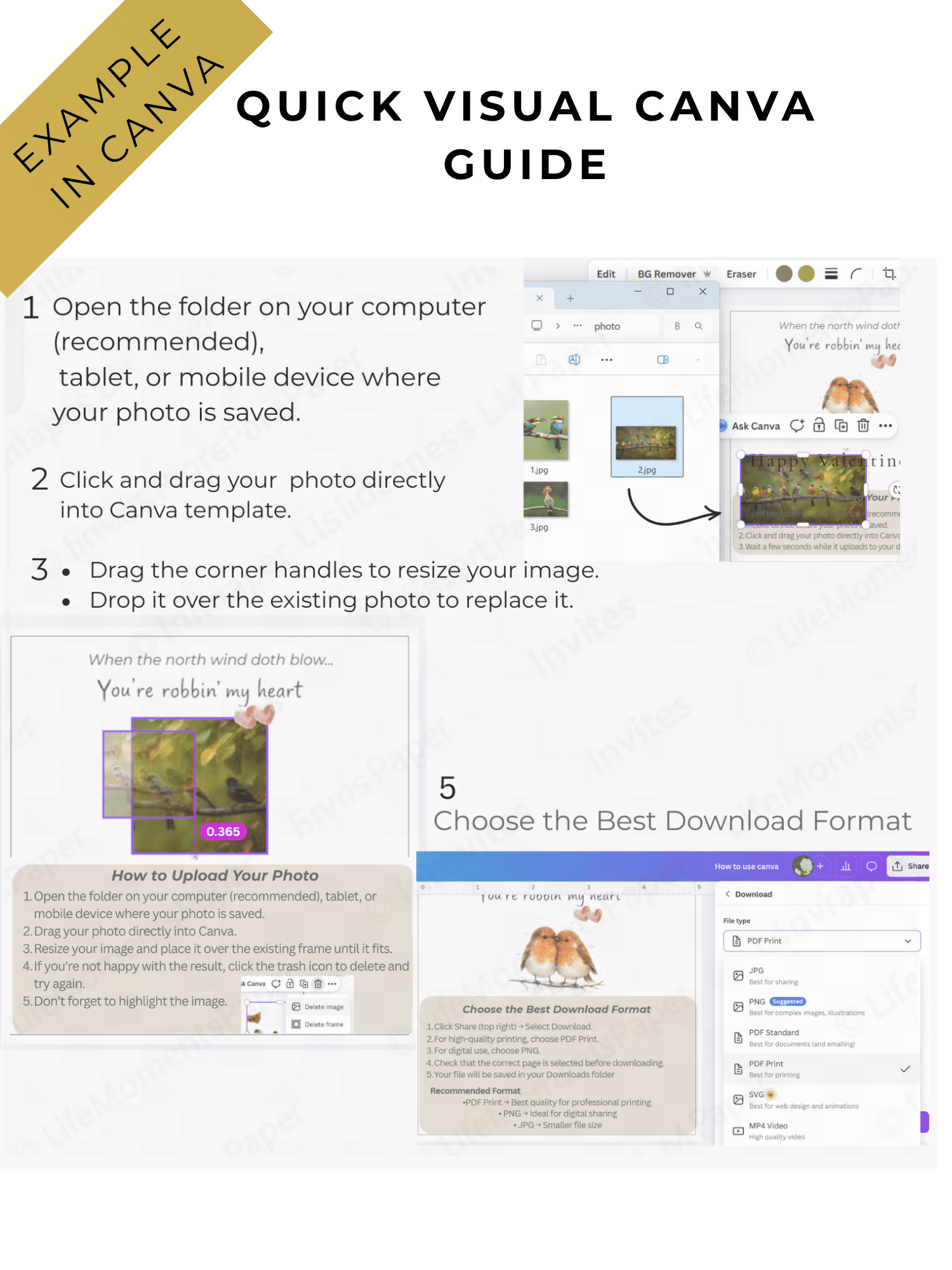
- Upload your photo to Canva from your computer or phone. https://ik.imagekit.io/LifeMomentsPaper/canva-visual-guide-steps-photos.png
- Drag the photo directly over the existing sample photo inside the frame.
- Do not delete the original image first. The frame must remain there so Canva can place the new photo correctly.
- Hover until Canva previews your photo inside the frame.
- Release the mouse or touchpad when the photo appears inside the frame.
Double-click the photo after placing it. Drag inside the frame to reposition the face. Click outside the frame when finished.
5. PREPARING PHOTOS BEFORE UPLOADING
Better input photos create better printed results.
- Match orientation: Use vertical photos for vertical frames and horizontal photos for horizontal frames.
- Use original files: Avoid screenshots when possible. Original family photo files print more clearly.
- Watch edges: Avoid photos where faces are very close to borders, trim lines, or folds.
- Fix before Canva: Crop, rotate, brighten, or resize photos before uploading if the frame fit is difficult.
| Device | Free tool to use | Best for |
|---|---|---|
| Windows | Photos app or Paint | Cropping, rotating, resizing |
| Mac | Preview or Photos | Cropping and simple adjustments |
| iPhone / iPad | Photos app | Crop, brightness, contrast |
| Android | Google Photos or Gallery | Crop, brightness, basic edits |
If a photo looks blurry on your screen, it will usually look worse in print. Use the clearest version available.
6. UNLOCKING AND UNGROUPING OBJECTS
Some decorative elements are locked to help keep the layout in place while you edit.
- Click the object you want to edit, move, or delete.
- If a lock icon appears, click it to unlock the object.
- If several objects move together, select the cluster and click Ungroup in Canva’s top toolbar.
- Click away onto a blank area, then select the individual item you want to edit.
If you cannot find the lock icon, check the page thumbnail menu at the bottom of Canva. Use the three dots (...) and look for Unlock all.
7. IF SOMETHING MOVES OR DISAPPEARS
If something moves by mistake, don't worry.
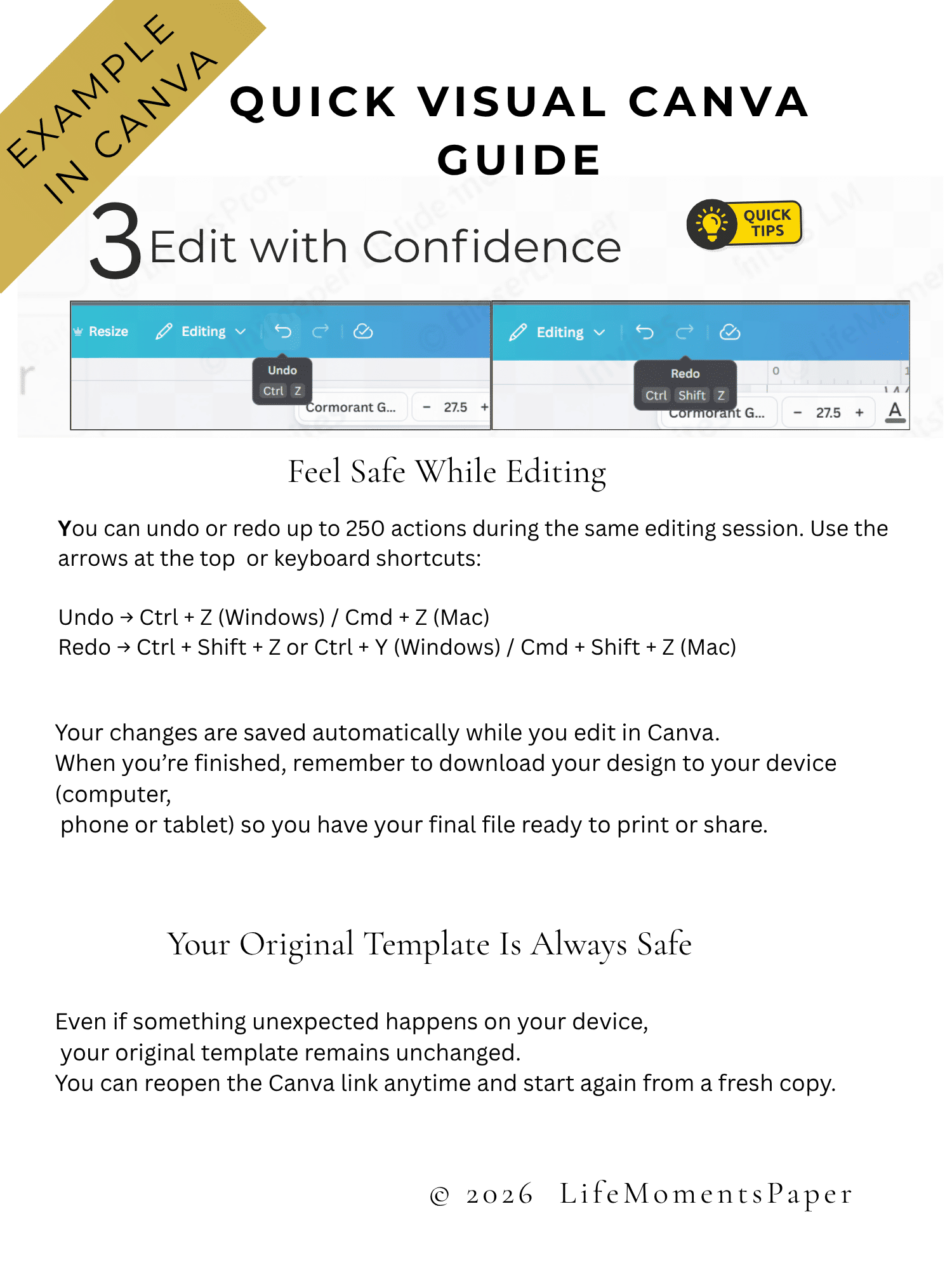
Click Undo in the top left corner until the previous version returns.
If you're making major changes, duplicate the page first so you'll always have a backup. If necessary, reopen your original template link to create a fresh editable copy.
Click Canva’s Undo arrow at the top left until the layout returns to the previous state.
Before replacing a long obituary or moving many items, duplicate the page as a backup.
Your original template link remains untouched. Reopen it to create a fresh copy.
Duplicate the page before major edits. One tiny precaution can save a ridiculous amount of future clicking.
8. DOWNLOAD OPTIONS: CHOOSE THE RIGHT FILE TYPE
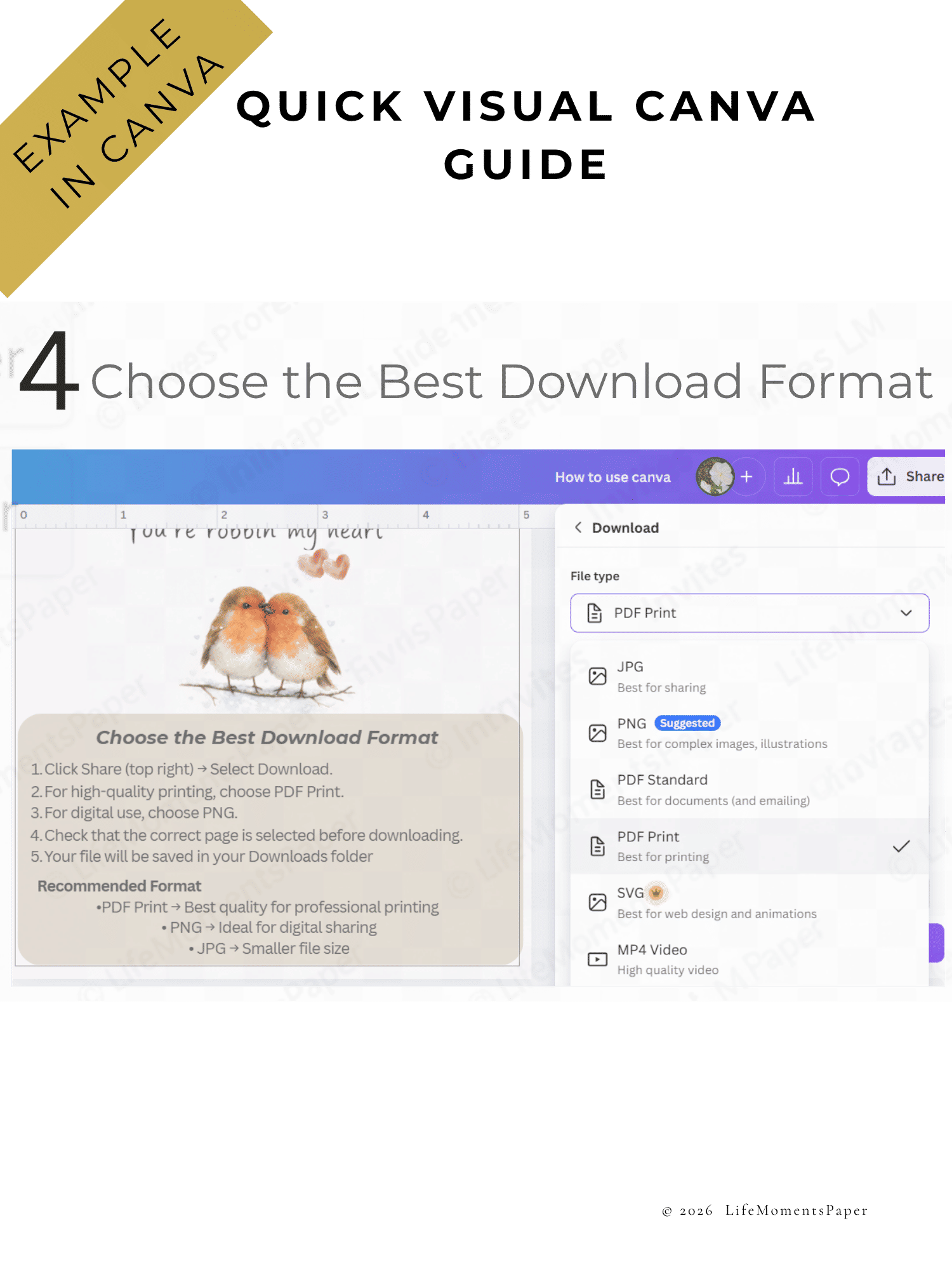
When you've finished editing, click Share in the top right corner, then choose Download.
Select the file type you need. For almost all printed products we recommend PDF Print.
| Target use | Choose this Canva format | Why |
|---|---|---|
| Professional print shop | PDF Print | Best quality for printing |
| Home printing | PDF Print | Keeps text and layout stable |
| Text / WhatsApp / phone sharing | PNG | Sharp and easy to send |
| Email sharing | JPG or standard PDF | Smaller file size |
| Memorial slideshow / video | MP4 Video | Required for video templates |
For professional printing, choose PDF Print. If your printer requests bleed, select Crop marks and bleed when Canva offers that option.
9. BASIC PRINTING RECOMMENDATIONS
Print settings can vary depending on your printer or print shop. The recommendations below work well for most customers.
- Confirm the final template size: 8.5 x 11, 14 x 8.5, 17 x 11, mobile format, prayer card size, or the exact size included in your product.
- Download as PDF Print for the best print quality.
- Open the downloaded PDF before sending it to print.
- Print one test copy before printing many copies.
- For home printing, check that your printer is not shrinking or stretching the design. Use Actual Size or 100% scale when appropriate.
- For bifold or trifold designs, ask the printer how the file should be folded. Heavy paper may need scoring before folding.
Colors can look different on screen and in print because screens use light and printers use ink. Paper type also changes the final result.
10. MOBILE MEMORIAL VERSION
Some products include a vertical mobile version designed for fast phone sharing.
- Open the mobile template link.
- Personalize all text fields such as name, date, service time, and livestream details if included.
- Drag your portrait photo over the existing mobile photo frame.
- Double-click to reposition the face if needed.
- Download as PNG or JPG for easy phone sharing. Choose PDF if the file may also be printed or saved formally.
- Check the downloaded file on your phone before sharing widely.
PNG usually keeps small text sharper for phone sharing than JPG.
11. MEMORIAL VIDEO OR SLIDESHOW TEMPLATES
Some products may include a memorial video or slideshow design.
- Open the video template link.
- If Canva opens in timeline view and text is hard to select, switch to Grid View or Page View.
- Edit names, dates, and text on each slide.
- Replace photos by dragging them directly over the existing photo frames.
- Adjust slide duration if guests need more time to read a poem, scripture, or obituary passage.
- Keep transitions simple and respectful.
- Download as MP4 Video. Watch the full downloaded video before sharing.
Watch the final MP4 from start to finish. Check spelling, photos, timing, music, and any service details.
12. COMMON PROBLEMS AND QUICK FIXES
If something doesn't work as expected, the solutions below will usually fix it in just a few moments.
| Problem | Likely cause | Quick fix |
|---|---|---|
| I cannot move or delete something. | It may be locked or grouped. | Unlock it or click Ungroup. |
| Several objects move together. | They are grouped. | Select the cluster and click Ungroup. |
| My photo will not fit correctly. | Photo orientation or crop does not match the frame. | Use a similar orientation and double-click to reposition. |
| A photo or object disappeared. | It was moved or deleted by mistake. | Use Undo, or reopen the original template link. |
| Canva asks me to pay. | A premium crown element may have been added. | Remove crowned elements or replace them with free items. |
| The text is too long. | Text block has more words than the sample. | Reduce font size, adjust spacing, or shorten the text. |
| The print looks smaller. | Printer may have scaled the design. | Use Actual Size or 100% scale if appropriate. |
| I want to add more photos. | You need another frame. | Duplicate an existing photo frame and drag in the new photo. |
13. FINAL CHECKLIST BEFORE DOWNLOADING
Use this checklist before printing, emailing, texting, or sharing the final file:
Return to your original template link and open a fresh copy. This is often faster than repairing a heavily moved layout.


.jpg)
Comments
Post a Comment
Gracias por tu comentario